Lag during playback is usually blamed on the computer, and the computer is often innocent. A stuttering preview can come from the camera’s codec, a project set above what the footage needs, or a setting left on its default. Insufficient hardware is only the fourth possibility, and all four look identical from the timeline.
Working out which one applies takes about 20 minutes and costs nothing. This article covers what to check before a Wondershare Filmora download and what genuinely loads a machine. It then sets out how to test the result honestly, and what to try before concluding that the computer needs replacing.
Part 1. Check the Current System Requirements
Published specifications age faster than most articles quoting them. Filmora keeps separate requirement pages for Windows and macOS, both linked from the Wondershare Filmora download page, and both change between major releases. The figures worth trusting are the ones read on the day you plan to install.
Read that page for 4 things rather than one. The operating system list tells you whether your machine is supported at all, since older systems are often served by an earlier build. Memory and graphics figures usually differ between standard projects and 4K work, which is where most disappointment starts.
Part 2. Understand What Makes Video Editing More Demanding
Requirements are written for a typical project, and the word typical is doing considerable work. Seven things push a timeline past what a mid-range machine handles comfortably:
| What Increases the Load | Why It Costs More |
|---|---|
| 4K and High Frame Rates | 4 times the pixels of HD, and double the frames at 60fps |
| Complex Codecs | HEVC and 10-bit footage decode slowly next to standard H.264 |
| Long Timelines | More clips to track, and a project file that grows with every edit |
| Multiple Video Layers | Every stacked track is decoded and composited for each frame |
| Heavy Effects | Blurs, grades, and stabilization recalculate continuously in playback |
| AI Processing | Analysis passes run before results appear, loading the CPU or GPU |
| Large Source Files | Storage read speed becomes the limit before the processor does |
Most projects hit 2 or 3 of these at once, which is the point where a machine that felt adequate suddenly stops feeling that way.
Part 3. Check Storage and Media Organization
Storage causes more editing problems than any other single factor, and it is also the cheapest to fix. These 5 checks cover most of what goes wrong:
- Free Disk Space: Editing needs room for cache, render files, and exports, well beyond whatever the installer asked for.
- Cache and Render Files: Filmora writes preview render files and proxies to disk. Both can be set to delete automatically when a project closes.
- Source File Locations: Keep footage in one folder per project, because moving files after import forces the editor to relink them.
- External Drives: A slow USB drive throttles playback regardless of processor speed, so keep active projects on internal storage.
- Project Backups: Copy the project file separately from the footage, since it holds every edit decision in a very small file.
Part 4. Run a Practical Performance Test in Filmora
Guesswork ends once real footage goes through a real project. Filmora is free to download and test, making this performance check easy to run. Trial export restrictions may apply depending on the active license or offer. Use a clip from the camera you actually shoot on, at the resolution you deliver, then work through the five stages below:
Step 1. Import and Preview a Source Clip
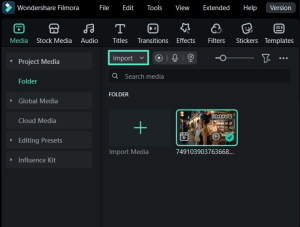
Bring one representative clip into the media panel using the “Import” button and play it before it reaches the timeline. A clip that already stutters here may point to the codec rather than the edit.
Step 2. Add Several Clips to the Timeline
Drop 4 or 5 clips into a sequence and scrub through the joins. Watch whether the playhead keeps pace, or whether the preview falls behind your cursor.
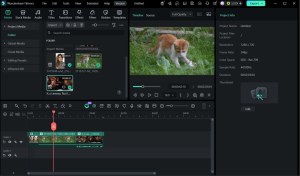
Step 3. Apply Text, Audio, and One Typical Effect
Add a title, a music track, and a single effect you would normally use. A red line above the timeline marks any section that has not been rendered yet.
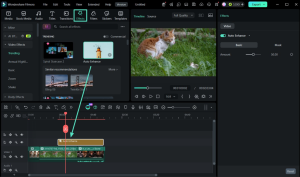
Step 4. Play the Edited Section
Play the whole sequence at full quality rather than scrubbing through it. Dropped frames, stuttering audio, and drift between picture and sound all surface here rather than anywhere else.
Step 5. Export a Short Sample
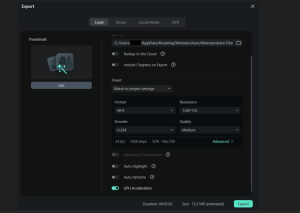
Render the sequence and time the export against the length of the clip. An export taking many times the running time signals a load the hardware is struggling with.
Note the stage at which performance breaks down, because that point names the cause more reliably than any diagnostic tool. For a broader overview of the tools that may affect editing performance, review Filmora video editing features.
Part 5. Improve Performance Before Replacing the Computer
A failed test rarely means the machine is finished. 6 adjustments recover most of the lost performance, and none of them costs anything:
- Lower the Playback Quality: The control below the preview window drops preview resolution to a half or a quarter without affecting the export.
- Create Proxy Files: Right-click a clip and choose “Create Proxy File,” or set “Preferences” to build them automatically above a chosen resolution.
- Render the Preview: Use the render button so the red line above the timeline turns green, after which playback runs from rendered frames.
- Close Background Applications: Browsers and chat clients hold memory and graphics resources the editor would otherwise use.
- Free Up Storage: Delete old render files and proxies, which Filmora can also clear automatically when a project closes.
- Disable Heavy Effects Temporarily: Switch stabilization and grades off while cutting, then turn them back on before the final export.
Note: Proxies change only what you see while editing. Filmora renders the final file from the original footage, so export quality is unaffected. For a beginner-friendly example of a workflow that can add analysis load, see this Filmora beginner guide on auto synchronization.
Part 6. Recognize a Real Compatibility Problem
Some faults sit outside the reach of settings, and knowing the difference saves hours. These 4 symptoms point at something structural rather than a configuration you can adjust:
| Symptom | What It Usually Points To |
|---|---|
| Unsupported System | An operating system that predates the release, although an older build may install |
| Repeated Crashes | Driver conflicts or a damaged installation, both of which need a clean reinstall |
| Graphics Features Missing | Acceleration options grayed out, usually from an outdated or unsupported GPU driver |
| Unusable Export Times | Hardware genuinely below requirement for the resolution being exported |
Anything on that list is worth raising with support before spending money, since 3 of the 4 have fixes that cost nothing.
Conclusion
The honest answer to whether a computer can edit video is that it depends on the video. A machine that struggles with 4K multi-cam may handle 1080p interviews without complaint. No specification sheet will tell you which side of that line you fall on. Download Filmora, build one realistic project, and let the measurements decide.